最近の更新

ラベル jQuery Mobile の投稿を表示しています。 すべての投稿を表示

2013年4月21日日曜日

Dialog閉じるボタンを消す

【目的】
jQuery Mobile1.3.1でダイアログの閉じるボタンを非表示にします。


【準備】
1.「jQuery Mobile1.3.1の使用方法(画像が必要な場合)」の手順の通り、jQuery Mobileに必要なファイルを配置しておきます。


【手順1】
1.HTMLファイル「index.html」(任意)を作成。
2.「index.html」を以下の様に入力。
<!DOCTYPE html>
<html>
<head>
    <meta name="viewport" content="width=device-width, initial-scale=1">
    <link rel="stylesheet" href="jquery.mobile-1.3.1.min.css" />
</head>
<body>
    <div data-role="page">
        <a href="#dialog1" data-role="button" data-rel="dialog">ダイアログを開く</a>
    </div>

    <div id="dialog1" data-role="dialog" data-close-btn="none">
        <div data-role="header">
            <h1>ダイアログのヘッダー</h1>
        </div>

        <div data-role="content">
            <h1>確認</h1>
            <a href="#" data-role="button" data-rel="back">戻る</a>
        </div>
    </div>
    
    <script src="jquery-1.9.1.min.js"></script>
    <script src="jquery.mobile-1.3.1.min.js"></script>
</body>
</html>


【手順2】
1.ブラウザで「index.html」を開き、以下の様に表示されれば成功です。


以上です。

Dialog閉じるボタンを右

【目的】
jQuery Mobile1.3.1でダイアログの閉じるボタンを右側に表示します。


【準備】
1.「jQuery Mobile1.3.1の使用方法(画像が必要な場合)」の手順の通り、jQuery Mobileに必要なファイルを配置しておきます。


【手順1】
1.HTMLファイル「index.html」(任意)を作成。
2.「index.html」を以下の様に入力。
<!DOCTYPE html>
<html>
<head>
    <meta name="viewport" content="width=device-width, initial-scale=1">
    <link rel="stylesheet" href="jquery.mobile-1.3.1.min.css" />
</head>
<body>
    <div data-role="page">
        <a href="#dialog1" data-role="button" data-rel="dialog">ダイアログを開く</a>
    </div>

    <div id="dialog1" data-role="dialog" data-close-btn="right">
        <div data-role="header">
            <h1>ダイアログのヘッダー</h1>
        </div>

        <div data-role="content">
            <h1>確認</h1>
            <a href="#" data-role="button" data-rel="back">戻る</a>
        </div>
    </div>
    
    <script src="jquery-1.9.1.min.js"></script>
    <script src="jquery.mobile-1.3.1.min.js"></script>
</body>
</html>


【手順2】
1.ブラウザで「index.html」を開き、以下の様に表示されれば成功です。


以上です。

Dialog閉じるボタンのテキスト変更(プログラム設定)

【目的】
jQuery Mobile1.3.1でダイアログの閉じるボタンのテキストを変更をプログラム設定で行います。


【準備】
1.「jQuery Mobile1.3.1の使用方法(画像が必要な場合)」の手順の通り、jQuery Mobileに必要なファイルを配置しておきます。


【手順1】
1.HTMLファイル「index.html」(任意)を作成。
2.「index.html」を以下の様に入力。
<!DOCTYPE html>
<html>
<head>
    <meta name="viewport" content="width=device-width, initial-scale=1">
    <link rel="stylesheet" href="jquery.mobile-1.3.1.min.css" />
</head>
<body>
    <div data-role="page">
        <a href="#dialog1" data-role="button" data-rel="dialog">ダイアログを開く</a>
    </div>

    <div id="dialog1" data-role="dialog">
        <div data-role="header">
            <h1>ダイアログのヘッダー</h1>
        </div>

        <div data-role="content">
            <h1>確認</h1>
            <a href="#" data-role="button" data-rel="back">戻る</a>
        </div>
    </div>
    
    <script src="jquery-1.9.1.min.js"></script>
    <script type="text/javascript">
        $(document).bind("mobileinit", function() {
            $.mobile.dialog.prototype.options.closeBtnText = "閉じます";
        });
    </script>
    <script src="jquery.mobile-1.3.1.min.js"></script>
</body>
</html>


【手順2】
1.ブラウザで「index.html」を開き、以下の様に表示されれば成功です。


以上です。

Dialog閉じるボタンのテキスト変更

【目的】
jQuery Mobile1.3.1でダイアログの閉じるボタンのテキストを変更します。


【準備】
1.「jQuery Mobile1.3.1の使用方法(画像が必要な場合)」の手順の通り、jQuery Mobileに必要なファイルを配置しておきます。


【手順1】
1.HTMLファイル「index.html」(任意)を作成。
2.「index.html」を以下の様に入力。
<!DOCTYPE html>
<html>
<head>
    <meta name="viewport" content="width=device-width, initial-scale=1">
    <link rel="stylesheet" href="jquery.mobile-1.3.1.min.css" />
</head>
<body>
    <div data-role="page">
        <a href="#dialog1" data-role="button" data-rel="dialog">ダイアログを開く</a>
    </div>

    <div id="dialog1" data-role="dialog" data-close-btn-text="閉じる">
        <div data-role="header">
            <h1>ダイアログのヘッダー</h1>
        </div>

        <div data-role="content">
            <h1>確認</h1>
            <a href="#" data-role="button" data-rel="back">戻る</a>
        </div>
    </div>
    
    <script src="jquery-1.9.1.min.js"></script>
    <script src="jquery.mobile-1.3.1.min.js"></script>
</body>
</html>


【手順2】
1.ブラウザで「index.html」を開き、以下の様に表示されれば成功です。


以上です。

Dialog同一HTML

【目的】
jQuery Mobile1.3.1で同一HTML内のダイアログを表示します。


【準備】
1.「jQuery Mobile1.3.1の使用方法(画像が必要な場合)」の手順の通り、jQuery Mobileに必要なファイルを配置しておきます。


【手順1】
1.HTMLファイル「index.html」(任意)を作成。
2.「index.html」を以下の様に入力。
<!DOCTYPE html>
<html>
<head>
    <meta name="viewport" content="width=device-width, initial-scale=1">
    <link rel="stylesheet" href="jquery.mobile-1.3.1.min.css" />
</head>
<body>
    <div data-role="page">
        <a href="#dialog1" data-role="button" data-rel="dialog">ダイアログを開く</a>
    </div>

    <div id="dialog1" data-role="dialog">
        <div data-role="header">
            <h1>ダイアログのヘッダー</h1>
        </div>

        <div data-role="content">
            <h1>確認</h1>
            <a href="#" data-role="button" data-rel="back">戻る</a>
        </div>
    </div>
    
    <script src="jquery-1.9.1.min.js"></script>
    <script src="jquery.mobile-1.3.1.min.js"></script>
</body>
</html>


【手順2】
1.ブラウザで「index.html」を開き、以下の様に表示されれば成功です。


以上です。

Dialog別HTML

【目的】
jQuery Mobile1.3.1で別HTMLのダイアログを表示します。


【準備】
1.「jQuery Mobile1.3.1の使用方法(画像が必要な場合)」の手順の通り、jQuery Mobileに必要なファイルを配置しておきます。


【手順1】
1.HTMLファイル「index.html」(任意)を作成。
2.「index.html」を以下の様に入力。
<!DOCTYPE html>
<html>
<head>
    <meta charset="UTF-8">
    <meta name="viewport" content="width=device-width, initial-scale=1">
    <link rel="stylesheet" href="jquery.mobile-1.3.1.min.css" />
</head>
<body>
    <div data-role="dialog">
        <div data-role="header">
            <h1>ダイアログのヘッダー</h1>
        </div>

        <div data-role="content">
            <h1>確認</h1>
            <a href="#" data-role="button" data-rel="back">戻る</a>
        </div>
    </div>
    
    <script src="jquery-1.9.1.min.js"></script>
    <script src="jquery.mobile-1.3.1.min.js"></script>
</body>
</html>


【手順2】
1.「Apache HTTP Server 2.2.22のインストール方法(Windows版)」の手順で、Apacheをインストールしておきます。
2.「Apacheの起動方法(Windows版Apache Monitor)」の手順で、Apacheを起動しておきます。
3.Apacheのインストールディレクトリの「htdocs/16-001-Dialog」ディレクトリに作成したHTMLを配置します。
※ローカルのHTMLファイルを開くだけではダイアログは正常に表示されないので、上記手順が必要でした。


【手順3】
1.ブラウザで以下のURLを開き、正常に表示されれば成功です。
http://localhost/16-001-Dialog/


以上です。

アンカーリンク(成功)

【目的】
jQuery Mobile1.3.1で「aタグ」のページ内でのアンカーの機能をリンクを使用します。(成功しました)


【準備】
1.「jQuery Mobile1.3.1の使用方法(画像が必要な場合)」の手順の通り、jQuery Mobileに必要なファイルを配置しておきます。


【手順1】
1.HTMLファイル「index.html」(任意)を作成。
2.「index.html」を以下の様に入力。
<!DOCTYPE html>
<html>
<head>
    <meta name="viewport" content="width=device-width, initial-scale=1">
    <link rel="stylesheet" href="jquery.mobile-1.3.1.min.css" />
</head>
<body>
    <a href="#aaa" class="anchor">移動</a><br/ >
    1<br />
    2<br />
    3<br />
    4<br />
    5<br />
    6<br />
    7<br />
    8<br />
    9<br />
    10<br />
    <div id="aaa">ここに移動したい!</a><br/ >
    11<br />
    12<br />
    13<br />
    14<br />
    15<br />
    16<br />
    17<br />
    18<br />
    19<br />
    20<br />
    
    <script src="jquery-1.9.1.min.js"></script>
    <script src="jquery.mobile-1.3.1.min.js"></script>
    <script type="text/javascript">
        $(document).on('click', 'a.anchor', function(e){
            e.preventDefault();
            var y = $($(this).attr('href')).offset().top;
            $.mobile.silentScroll(y);
        });
    </script>
</body>
</html>


【手順2】
1.ブラウザで「index.html」を開き、以下の様に表示されれば成功です。


【結論】
jQuery Mobileでは#を使用したページ内へのアンカーリンクは通常では出来ませんでした。

ですので、以下の手順でページ内アンカーを実現する方法があるようです。


1.リンクの「aタグ」に「class="anchor"」を指定。

2.リンクの「aタグ」の「href属性」には#+飛び先のIDを指定。(上記の例はhref="#aaa")

3.リンクの飛び先のタグにIDを指定。(上記の例はdivタグにid="aaa")

4.jQuery・jQuery Mobileロード後に、以下のjQueryを記載。
    <script type="text/javascript">
        $(document).on('click', 'a.anchor', function(e){
            e.preventDefault();
            var y = $($(this).attr('href')).offset().top;
            $.mobile.silentScroll(y);
        });
    </script>


以上です。

アンカーリンク(失敗)

【目的】
jQuery Mobile1.3.1で「aタグ」のページ内でのアンカーの機能をリンクを使用します。(失敗しました)


【準備】
1.「jQuery Mobile1.3.1の使用方法(画像が必要な場合)」の手順の通り、jQuery Mobileに必要なファイルを配置しておきます。


【手順1】
1.HTMLファイル「index.html」(任意)を作成。
2.「index.html」を以下の様に入力。
<!DOCTYPE html>
<html>
<head>
    <meta name="viewport" content="width=device-width, initial-scale=1">
    <link rel="stylesheet" href="jquery.mobile-1.3.1.min.css" />
</head>
<body>
    <a href="#aaa">移動</a><br/ >
    1<br />
    2<br />
    3<br />
    4<br />
    5<br />
    6<br />
    7<br />
    8<br />
    9<br />
    10<br />
    <a name="aaa">ここに移動したい!</a><br/ >
    11<br />
    12<br />
    13<br />
    14<br />
    15<br />
    16<br />
    17<br />
    18<br />
    19<br />
    20<br />
    
    <script src="jquery-1.9.1.min.js"></script>
    <script src="jquery.mobile-1.3.1.min.js"></script>
</body>
</html>


【手順2】
1.ブラウザで「index.html」を開き、以下の様に表示されましたが、ページ内での移動はできませんでした。


【結論】
jQuery Mobileでは#を使用したページ内へのアンカーリンクは通常では出来ないようです。


以上です。

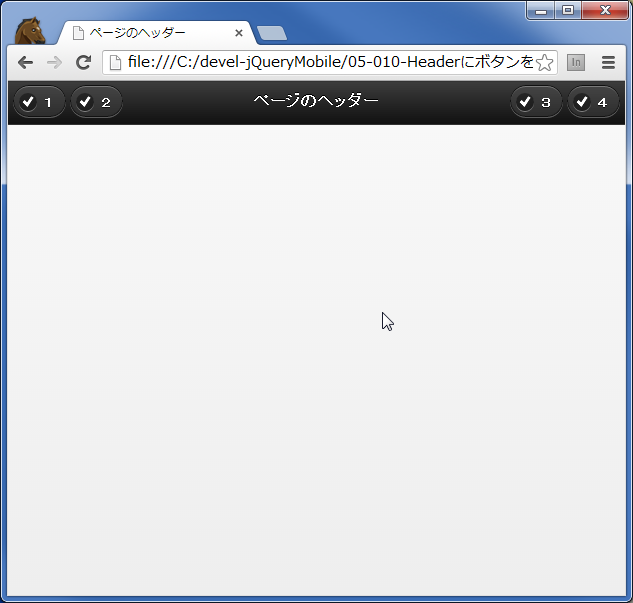
Headerにボタンを3つ以上

【目的】
jQuery Mobile1.3.1でヘッダーに3つ以上のボタンを表示します。


【準備】
1.「jQuery Mobile1.3.1の使用方法(画像が必要な場合)」の手順の通り、jQuery Mobileに必要なファイルを配置しておきます。


【手順1】
1.HTMLファイル「index.html」(任意)を作成。
2.「index.html」を以下の様に入力。
<!DOCTYPE html>
<html>
<head>
    <meta name="viewport" content="width=device-width, initial-scale=1">
    <link rel="stylesheet" href="jquery.mobile-1.3.1.min.css" />
</head>
<body>
    <div data-role="header">
        <div class="ui-btn-left">
            <a href="#" data-icon="check" data-role="button" data-inline="true">1</a>
            <a href="#" data-icon="check" data-role="button" data-inline="true">2</a>
        </div>
        <div class="ui-btn-right">
            <a href="#" data-icon="check" data-role="button" data-inline="true">3</a>
            <a href="#" data-icon="check" data-role="button" data-inline="true">4</a>
        </div>
        <h1>ページのヘッダー</h1>
    </div>

    <script src="jquery-1.9.1.min.js"></script>
    <script src="jquery.mobile-1.3.1.min.js"></script>
</body>
</html>


【手順2】
1.ブラウザで「index.html」を開き、以下の様に表示されれば成功です。


以上です。

2013年4月19日金曜日

Input時分

【目的】
jQuery Mobile1.3.1で時分の入力を指定します。


【準備】
1.「jQuery Mobile1.3.1の使用方法(画像が必要な場合)」の手順の通り、jQuery Mobileに必要なファイルを配置しておきます。


【手順1】
1.HTMLファイル「index.html」(任意)を作成。
2.「index.html」を以下の様に入力。
<!DOCTYPE html>
<html>
<head>
    <meta name="viewport" content="width=device-width, initial-scale=1">
    <link rel="stylesheet" href="jquery.mobile-1.3.1.min.css" />
</head>
<body>
    <form>
        <label>入力:
            <input type="time">
        </label>
    </form>
    
    <script src="jquery-1.9.1.min.js"></script>
    <script src="jquery.mobile-1.3.1.min.js"></script>
</body>
</html>


【手順2】
1.ブラウザで「index.html」を開き、以下の様に表示されれば成功です。


以上です。

Input年週

【目的】
jQuery Mobile1.3.1で年週の入力を指定します。


【準備】
1.「jQuery Mobile1.3.1の使用方法(画像が必要な場合)」の手順の通り、jQuery Mobileに必要なファイルを配置しておきます。


【手順1】
1.HTMLファイル「index.html」(任意)を作成。
2.「index.html」を以下の様に入力。
<!DOCTYPE html>
<html>
<head>
    <meta name="viewport" content="width=device-width, initial-scale=1">
    <link rel="stylesheet" href="jquery.mobile-1.3.1.min.css" />
</head>
<body>
    <form>
        <label>入力:
            <input type="week">
        </label>
    </form>
    
    <script src="jquery-1.9.1.min.js"></script>
    <script src="jquery.mobile-1.3.1.min.js"></script>
</body>
</html>


【手順2】
1.ブラウザで「index.html」を開き、以下の様に表示されれば成功です。


以上です。

Input年月

【目的】
jQuery Mobile1.3.1で年月の入力を指定します。


【準備】
1.「jQuery Mobile1.3.1の使用方法(画像が必要な場合)」の手順の通り、jQuery Mobileに必要なファイルを配置しておきます。


【手順1】
1.HTMLファイル「index.html」(任意)を作成。
2.「index.html」を以下の様に入力。
<!DOCTYPE html>
<html>
<head>
    <meta name="viewport" content="width=device-width, initial-scale=1">
    <link rel="stylesheet" href="jquery.mobile-1.3.1.min.css" />
</head>
<body>
    <form>
        <label>入力:
            <input type="month">
        </label>
    </form>
    
    <script src="jquery-1.9.1.min.js"></script>
    <script src="jquery.mobile-1.3.1.min.js"></script>
</body>
</html>


【手順2】
1.ブラウザで「index.html」を開き、以下の様に表示されれば成功です。


以上です。

Input年月日

【目的】
jQuery Mobile1.3.1で年月日の入力を指定します。


【準備】
1.「jQuery Mobile1.3.1の使用方法(画像が必要な場合)」の手順の通り、jQuery Mobileに必要なファイルを配置しておきます。


【手順1】
1.HTMLファイル「index.html」(任意)を作成。
2.「index.html」を以下の様に入力。
<!DOCTYPE html>
<html>
<head>
    <meta name="viewport" content="width=device-width, initial-scale=1">
    <link rel="stylesheet" href="jquery.mobile-1.3.1.min.css" />
</head>
<body>
    <form>
        <label>入力:
            <input type="date">
        </label>
    </form>
    
    <script src="jquery-1.9.1.min.js"></script>
    <script src="jquery.mobile-1.3.1.min.js"></script>
</body>
</html>


【手順2】
1.ブラウザで「index.html」を開き、以下の様に表示されれば成功です。


以上です。

Input数値

【目的】
jQuery Mobile1.3.1で数値入力を指定します。


【準備】
1.「jQuery Mobile1.3.1の使用方法(画像が必要な場合)」の手順の通り、jQuery Mobileに必要なファイルを配置しておきます。


【手順1】
1.HTMLファイル「index.html」(任意)を作成。
2.「index.html」を以下の様に入力。
<!DOCTYPE html>
<html>
<head>
    <meta name="viewport" content="width=device-width, initial-scale=1">
    <link rel="stylesheet" href="jquery.mobile-1.3.1.min.css" />
</head>
<body>
    <form>
        <label>入力:
            <input type="number">
        </label>
    </form>
    
    <script src="jquery-1.9.1.min.js"></script>
    <script src="jquery.mobile-1.3.1.min.js"></script>
</body>
</html>


【手順2】
1.ブラウザで「index.html」を開き、以下の様に表示されれば成功です。


以上です。

Input検索エリア

【目的】
jQuery Mobile1.3.1で検索エリアを指定します。


【準備】
1.「jQuery Mobile1.3.1の使用方法(画像が必要な場合)」の手順の通り、jQuery Mobileに必要なファイルを配置しておきます。


【手順1】
1.HTMLファイル「index.html」(任意)を作成。
2.「index.html」を以下の様に入力。
<!DOCTYPE html>
<html>
<head>
    <meta name="viewport" content="width=device-width, initial-scale=1">
    <link rel="stylesheet" href="jquery.mobile-1.3.1.min.css" />
</head>
<body>
    <form>
        <label>検索:
            <input type="search">
        </label>
    </form>
    
    <script src="jquery-1.9.1.min.js"></script>
    <script src="jquery.mobile-1.3.1.min.js"></script>
</body>
</html>


【手順2】
1.ブラウザで「index.html」を開き、以下の様に表示されれば成功です。


以上です。

Inputテキストクリアボタン

【目的】
jQuery Mobile1.3.1でテキスト入力にクリアボタンを表示します。


【準備】
1.「jQuery Mobile1.3.1の使用方法(画像が必要な場合)」の手順の通り、jQuery Mobileに必要なファイルを配置しておきます。


【手順1】
1.HTMLファイル「index.html」(任意)を作成。
2.「index.html」を以下の様に入力。
<!DOCTYPE html>
<html>
<head>
    <meta name="viewport" content="width=device-width, initial-scale=1">
    <link rel="stylesheet" href="jquery.mobile-1.3.1.min.css" />
</head>
<body>
    <form>
        <label>入力:
            <input type="text" data-clear-btn="true">
        </label>
    </form>
    
    <script src="jquery-1.9.1.min.js"></script>
    <script src="jquery.mobile-1.3.1.min.js"></script>
</body>
</html>


【手順2】
1.ブラウザで「index.html」を開き、以下の様に表示されれば成功です。


以上です。

Inputテキスト

【目的】
jQuery Mobile1.3.1でテキスト入力を指定します。


【準備】
1.「jQuery Mobile1.3.1の使用方法(画像が必要な場合)」の手順の通り、jQuery Mobileに必要なファイルを配置しておきます。


【手順1】
1.HTMLファイル「index.html」(任意)を作成。
2.「index.html」を以下の様に入力。
<!DOCTYPE html>
<html>
<head>
    <meta name="viewport" content="width=device-width, initial-scale=1">
    <link rel="stylesheet" href="jquery.mobile-1.3.1.min.css" />
</head>
<body>
    <form>
        <label>入力:
            <input type="text">
        </label>
    </form>
    
    <script src="jquery-1.9.1.min.js"></script>
    <script src="jquery.mobile-1.3.1.min.js"></script>
</body>
</html>


【手順2】
1.ブラウザで「index.html」を開き、以下の様に表示されれば成功です。


以上です。

2013年4月18日木曜日

Navbarアイコン位置

【目的】
jQuery Mobile1.3.1でナビゲーションバーのアイコンの位置を変更します。


【準備】
1.「jQuery Mobile1.3.1の使用方法(画像が必要な場合)」の手順の通り、jQuery Mobileに必要なファイルを配置しておきます。


【手順1】
1.HTMLファイル「index.html」(任意)を作成。
2.「index.html」を以下の様に入力。
    <!DOCTYPE html>
<html>
<head>
    <meta name="viewport" content="width=device-width, initial-scale=1">
    <link rel="stylesheet" href="jquery.mobile-1.3.1.min.css" />
</head>
<body>
    <div data-role="navbar" data-iconpos="top">
        <ul>
            <li><a href="#" data-icon="grid" >ページ1</a></li>
            <li><a href="#" data-icon="star" >ページ2</a></li>
        </ul>
    </div>
    <br />
    <div data-role="navbar" data-iconpos="left">
        <ul>
            <li><a href="#" data-icon="grid" >ページ1</a></li>
            <li><a href="#" data-icon="star" >ページ2</a></li>
        </ul>
    </div>
    <br />
    <div data-role="navbar" data-iconpos="bottom">
        <ul>
            <li><a href="#" data-icon="grid" >ページ1</a></li>
            <li><a href="#" data-icon="star" >ページ2</a></li>
        </ul>
    </div>
    <br />
    <div data-role="navbar" data-iconpos="right">
        <ul>
            <li><a href="#" data-icon="grid" >ページ1</a></li>
            <li><a href="#" data-icon="star" >ページ2</a></li>
        </ul>
    </div>
    
    <script src="jquery-1.9.1.min.js"></script>
    <script src="jquery.mobile-1.3.1.min.js"></script>
</body>
</html>


【手順2】
1.ブラウザで「index.html」を開き、以下の様に表示されれば成功です。


以上です。

Navbarアイコン

【目的】
jQuery Mobile1.3.1でナビゲーションバーにアイコンを表示します。


【準備】
1.「jQuery Mobile1.3.1の使用方法(画像が必要な場合)」の手順の通り、jQuery Mobileに必要なファイルを配置しておきます。


【手順1】
1.HTMLファイル「index.html」(任意)を作成。
2.「index.html」を以下の様に入力。
<!DOCTYPE html>
<html>
<head>
    <meta name="viewport" content="width=device-width, initial-scale=1">
    <link rel="stylesheet" href="jquery.mobile-1.3.1.min.css" />
</head>
<body>
    <div data-role="navbar">
        <ul>
            <li><a href="#" data-icon="grid" class="ui-btn-active">ページ1</a></li>
            <li><a href="#" data-icon="star">ページ2</a></li>
            <li><a href="#" data-icon="gear">ページ3</a></li>
            <li><a href="#" data-icon="edit">ページ4</a></li>
            <li><a href="#" data-icon="bars">ページ5</a></li>
        </ul>
    </div>
    
    <script src="jquery-1.9.1.min.js"></script>
    <script src="jquery.mobile-1.3.1.min.js"></script>
</body>
</html>


【手順2】
1.ブラウザで「index.html」を開き、以下の様に表示されれば成功です。


以上です。

Navbarヘッダーブラウザ上部固定

【目的】
jQuery Mobile1.3.1でナビゲーションバーをヘッダーに表示し、ブラウザ上部に固定します。


【準備】
1.「jQuery Mobile1.3.1の使用方法(画像が必要な場合)」の手順の通り、jQuery Mobileに必要なファイルを配置しておきます。


【手順1】
1.HTMLファイル「index.html」(任意)を作成。
2.「index.html」を以下の様に入力。
<!DOCTYPE html>
<html>
<head>
    <meta name="viewport" content="width=device-width, initial-scale=1">
    <link rel="stylesheet" href="jquery.mobile-1.3.1.min.css" />
</head>
<body>
    <div data-role="header" data-id="header1" data-position="fixed">
        <h1>ヘッダー</h1>
        <div data-role="navbar">
            <ul>
                <li><a href="#" class="ui-btn-active">ページ1</a></li>
                <li><a href="#">ページ2</a></li>
                <li><a href="#">ページ3</a></li>
                <li><a href="#">ページ4</a></li>
                <li><a href="#">ページ5</a></li>
            </ul>
        </div>
    </div>

    1<br />
    2<br />
    3<br />
    4<br />
    5<br />
    6<br />
    7<br />
    8<br />
    9<br />
    10<br />
    11<br />
    12<br />
    13<br />
    14<br />
    15<br />
    16<br />
    17<br />
    18<br />
    19<br />
    20<br />
    
    <script src="jquery-1.9.1.min.js"></script>
    <script src="jquery.mobile-1.3.1.min.js"></script>
</body>
</html>


【手順2】
1.ブラウザで「index.html」を開き、以下の様に表示されれば成功です。


以上です。

関連記事